Introduction to Exploratory Data Analysis and Pre-Processing
As we will emphasize throughout the semester, having a basic familiarity and understanding of the dataset you are working with will be important for making decisions about what and how to analyze it, and the success of machine learning algorithms will depend in large part on having prepared the data to ensure it has certain qualities.
In this unit, we introduce an initial set of data analysis and pre-processing techniques. This is just a starting point – we will introduce additional topics throughout the semester.
By the end of this module, students should be able to:
Investigate the shape and types of the variables (i.e., columns) contained within the dataset.
Perform type conversion for strings/objects of numerical data using
applycombined with other methods.Understand categorical and ordinal data and how to perform type conversion of categorical data to integers using one-hot encoding.
Perform basic duplicate and missing value detection and treatment.
Compute basic statistical properties of data, including mean, median, max and min.
Apply simple univariate and multivariate analysis of the feature columents including visualization techniques using matplotlib and/or seaborn libraries.
In this module, we will illustrate the concepts by working through a dataset hosted on the class GitHub repo. Before getting started, please download the used cars dataset from the class repository.
Step 0: Inspect the File
Before you write even a line of Python, it is good to just manually inspect the file. We can answer questions like the following without writing a line of code:
How big is the file?
Is it really text?
What do the first few lines look like?
For example:
# how big is the file?
$ ls -lh used_cars_data.csv
-rw-rw-r-- 1 jstubbs jstubbs 839K Jan 22 19:32 used_cars_data.csv
# it's a 839K file.. not too big

# is it really text?
$ file used_cars_data.csv
used_cars_data.csv: CSV text
# yes!
# other answers we could have gotten:
  # Python script, ASCII text executable (Python scripe)
  # ELF 64-bit LSB shared object, x86-64, version 1 (SYSV), dynamically linked (binary file)

# what do the first few lines look like?
$ head used_cars_data.csv
S.No.,Name,Location,Year,Kilometers_Driven,Fuel_Type,Transmission,Owner_Type,Mileage,Engine,Power,Seats,New_Price,Price,Engine Size
1,Hyundai Creta 1.6 CRDi SX Option,Pune,2015,41000,Diesel,Manual,First,19.67 kmpl,1582 CC,126.2 bhp,5.0,16.06,12.5,1582.0
2,Honda Jazz V,Chennai,2011,46000,Petrol,Manual,First,18.2 kmpl,1199 CC,88.7 bhp,5.0,8.61,4.5,1199.0
3,Maruti Ertiga VDI,Chennai,2012,87000,Diesel,Manual,First,20.77 kmpl,1248 CC,88.76 bhp,7.0,11.27,6.0,1248.0
4,Audi A4 New 2.0 TDI Multitronic,Coimbatore,2013,40670,Diesel,Automatic,Second,15.2 kmpl,1968 CC,140.8 bhp,5.0,53.14,17.74,1968.0
6,Nissan Micra Diesel XV,Jaipur,2013,86999,Diesel,Manual,First,23.08 kmpl,1461 CC,63.1 bhp,5.0,9.47,3.5,1461.0
7,Toyota Innova Crysta 2.8 GX AT 8S,Mumbai,2016,36000,Diesel,Automatic,First,11.36 kmpl,2755 CC,171.5 bhp,8.0,21.0,17.5,2755.0
8,Volkswagen Vento Diesel Comfortline,Pune,2013,64430,Diesel,Manual,First,20.54 kmpl,1598 CC,103.6 bhp,5.0,13.23,5.2,1598.0
9,Tata Indica Vista Quadrajet LS,Chennai,2012,65932,Diesel,Manual,Second,22.3 kmpl,1248 CC,74 bhp,5.0,7.63,1.95,1248.0
10,Maruti Ciaz Zeta,Kochi,2018,25692,Petrol,Manual,First,21.56 kmpl,1462 CC,103.25 bhp,5.0,10.65,9.95,1462.0
Now that we know we are really dealing with text and that there appears to be a row of header labels on the first line, let’s proceed to using Python.
Data Shape and Types
It’s important to begin any data exploration by understanding the shape (number of rows and columns) as well as the types (strings, integers, floats, etc) of the values in the dataset.
Let’s read the used cars dataset from the class repo into a DataFrame and work through some of the first examples.
# import the library and create the DataFrame
>>> import pandas as pd
>>> cars = pd.read_csv('used_cars_data.csv')

# use head to make sure dataset was actually loaded
>>> cars.head()
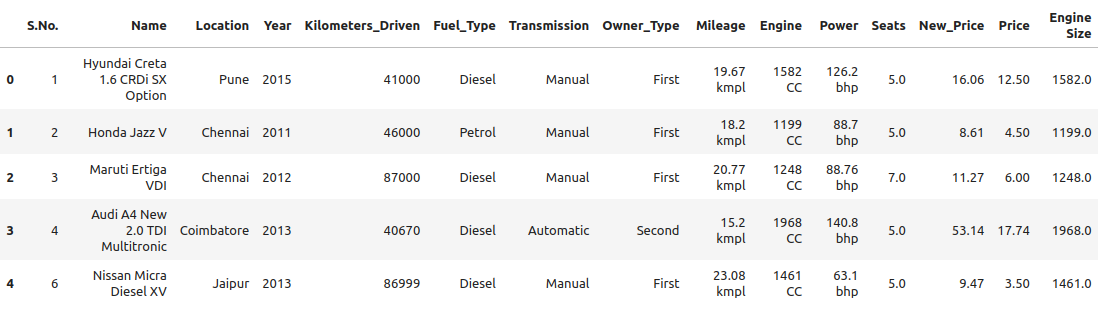
We begin by calling head() to print the first five rows. We also use shape to get the
number of rows and columns
>>> cars.shape
(7179, 15)
We see from the output of shape that there are 7,179 rows and 15 columns. The output of
head() gives us an idea of the columns.
We’ll use info() to get the column types that were inferred:
>>> cars.info()
<class 'pandas.core.frame.DataFrame'>
RangeIndex: 7179 entries, 0 to 7178
Data columns (total 15 columns):
#   Column             Non-Null Count  Dtype
---  ------             --------------  -----
0   S.No.              7179 non-null   int64
1   Name               7179 non-null   object
2   Location           7179 non-null   object
3   Year               7179 non-null   int64
4   Kilometers_Driven  7179 non-null   int64
5   Fuel_Type          7179 non-null   object
6   Transmission       7179 non-null   object
7   Owner_Type         7179 non-null   object
8   Mileage            7177 non-null   object
9   Engine             7133 non-null   object
10  Power              7005 non-null   object
11  Seats              7126 non-null   float64
12  New_Price          7179 non-null   float64
13  Price              5953 non-null   float64
14  Engine Size        7133 non-null   float64
dtypes: float64(4), int64(3), object(8)
memory usage: 841.4+ KB
We see a mix of ints, floats and objects (e.g., strings). The column names all look like legitimate header names, though some could be a little mysterious (e.g., “S.No.”).
We see that many of the columns have 7,179 non-null values, but Mileage, Engine, Power, Seats and Price all have fewer. Since the entire DataFrame has 7,179 rows, these columns must have missing values. That will be important soon.
A Basic Understanding of the Data
At this point, we want to step back and see if we have a basic understanding of what is going on with this dataset. If we were given a complete description of the data, this wouldn’t be difficult.
Often times though, our information about a dataset may be partial and imperfect. For example, it may have been sent to us by the “sales department” or the “data group”, and they may or may not have given us a complete explanation of all of the details. Or, we may have found the dataset on the internet, perhaps associated with a published paper, a blog post, or a git repository.
Sometimes, we have to do some of our own investigating to figure out what is going on with particular data elements or columns.
So let’s think about this dataset. Any one have a thought as to what is going on here?
This is a dataset about used cars – their current price as well as the price when they were new, and a number of other features, such as the name of the car, the year it was made, the fuel and transition type, etc.
Dropping Irrelevant Columns
Let’s think about whether we need all of the columns. It’s always best to remove “irrelevant” columns whenever possible. What constitute’s an “irrelevant” column?
What do you think?
It depends on the dataset and the question(s) being asked of it! There are plenty of interesting questions we could ask and (try to) answer with this dataset.
Today, we’re interested in understanding how the current (used) price is related to other features in the dataset.
This “S.No.” column looks suspicious. It looks like it might be just an integer index (i.e., the row number). That’s virtually never useful because we can always get the row index using functions.
But first, let’s confirm that it really is just the row index. How might we check that?
First, let’s just look at the values by printing the column. (Remember: how do we print the column of a DataFrame?)
>>> cars['S.No.']
0          0
1          1
2          2
3          3
4          4
      ...
7174    7174
7175    7175
7176    7176
7177    7177
7178    7178
Name: S.No., Length: 7179, dtype: int64
The output above tells us that the first five rows (rows 0 through 4) and the last five rows all have value for “S.No.” matching the row index. That’s pretty good evidence.
If we need more evidence here are some other checks:
>>> len(cars['S.No.'].unique())
7179 # the same number as the total number of values, so all values are unique

# compare with a numpy array
>>> import numpy as np
>>> n = numpy.arange(start=0, stop=7179, step=1)
>>> cars['S.No.'].sum() == n.sum()
True # the same sum, same length, and all unique, so we know they are identical!
Let’s drop this column. We’ll use the drop() method of the DataFrame, which allows us
to remove rows or columns using lables. We do need to specify the axis we want to delete from
(axis=0 for rows, axis=1 for columns), and we want to set inplace=True so that
it changes the existing DataFrame instead of creating a new one.
>>> cars.drop(['S.No.'], axis=1, inplace=True)

# it's always good to confirm
>>> cars.shape
(7523, 13)
You can read more about drop() from the documentation [1].
Type Conversions
While most datasets will have a mix of different types of data, including strings and numerics, virtually all of the algorithms we use in class require numeric data. Thus, before we start any machine learning, we’ll want to convert all of the columns to numbers. Broadly, there are two cases:
Numeric columns that are strings
Categorical columns that require an “embedding” to some space of numbers.
Numeric Columns with Strings
Let’s start with the case where we have numeric data that is represented as a string. This
could be because the numbers were just happened to be encoded as strings, e.g., "2.14 "
(and beware of spaces on either side of the number) or because the numbers contain other
characters, such as units, e.g., "2.14 kg".
Recall that the info() function returned the type information for each column:
>>> cars.info()
<class 'pandas.core.frame.DataFrame'>
RangeIndex: 7179 entries, 0 to 7178
Data columns (total 14 columns):
#   Column             Non-Null Count  Dtype
---  ------             --------------  -----
0   Name               7179 non-null   object
1   Location           7179 non-null   object
2   Year               7179 non-null   int64
3   Kilometers_Driven  7179 non-null   int64
4   Fuel_Type          7179 non-null   object
5   Transmission       7179 non-null   object
6   Owner_Type         7179 non-null   object
7   Mileage            7177 non-null   object
8   Engine             7133 non-null   object
9   Power              7005 non-null   object
10  Seats              7126 non-null   float64
11  New_Price          7179 non-null   float64
12  Price              5953 non-null   float64
13  Engine Size        7133 non-null   float64
dtypes: float64(4), int64(2), object(8)
memory usage: 785.3+ KB
We can see that several columns are type object even though they have some numeric data.
These include the Mileage, Engine and Power columns.
If we look at some values, we see that the rows appear to contain numbers with units.
Let’s fix those.
We need to strip off the units characters and leave only the numeric value. At that point we can cast the value to a float.
We need to take some care when attempting to modify all the values in a column. Remember, we’ve only looked at the first few values. There could be unexpected values later in the dataset.
Warning
Like in other software engineering, data processing should be done defensively. That is, assume that any kind of value could appear in any part of the dataset until you have proven otherwise.
We’ll use the endswith() string function to check the rows that end with a specific unit string.
Recall from the previous module the astype() function, for casting to a specific python type.
For example, we can produce a DataFrame of rows whose Mileage column ends with the string “kmpl”
as follows:
>>> cars[cars["Mileage"].astype(str).str.endswith("kmpl")])
Then, we can check the length of that DataFrame and compare it to the whole DataFrame:
>>> len(cars[cars["Mileage"].astype(str).str.endswith("kmpl")]))
7177
We see there are 7,177 rows ending in “kmpl” though there are 7,179 total rows. What might explain that?
(Hint: look at the output of info() again).
Yes, from the info() output, we know there are only 7,177 non-null rows in the Mileage column. So this means,
every non-null row ends with “kmpl”.
In-Class Exercise. Let’s repeat similar steps for Engine and Power.
What are the expected units? How do we check that the rows all end in the units?
Now that we know the units to remove, we need to actually modify the DataFrame to remove them.
The key to this is the pandas apply() function, which takes another function to apply to all
the rows in a DataFrame.
The function we pass to apply() needs to accept a single argument, which is the value in the DataFrame
to change, and it needs to return a single value as well (the updated value).
We can make use of the Python removesuffix() function from the string library, but we need to wrap it
to have this form.
def remove_units(s):
"""
Remove the units from a string, s, returning a new string.
"""
return s.removesuffix("CC")
With this function defined, we can use it with apply(), but as with the complex conditional we looked at
last time, we’ll need to cast the pandas series to string values first. Here is the code:
>>> cars['Engine'].astype(str).apply(remove_units)
The code above returns the resulting Series object after applying the function (remove_units())
to each value. We want to do two additional things:
Cast each value to a float, since it will be a valid float after stripping the units.
Set the final result to the original column,
Engine.
We can do this by applying one more astype and setting the result, like so:
>>> cars['Engine'] = cars['Engine'].astype(str).apply(remove_units).astype(float)
After executing the above code, we can then check that the Engine column was indeed converted:
>>> cars.info()
<class 'pandas.core.frame.DataFrame'>
RangeIndex: 7179 entries, 0 to 7178
Data columns (total 14 columns):
#   Column             Non-Null Count  Dtype
---  ------             --------------  -----
0   Name               7179 non-null   object
1   Location           7179 non-null   object
2   Year               7179 non-null   int64
3   Kilometers_Driven  7179 non-null   int64
4   Fuel_Type          7179 non-null   object
5   Transmission       7179 non-null   object
6   Owner_Type         7179 non-null   object
7   Mileage            7177 non-null   object
8   Engine             7133 non-null   float64
9   Power              7005 non-null   object
10  Seats              7126 non-null   float64
11  New_Price          7179 non-null   float64
12  Price              5953 non-null   float64
13  Engine Size        7133 non-null   float64
dtypes: float64(5), int64(2), object(7)
memory usage: 785.3+ KB
We can also check several values of the column to see that indeed the units have been removed:
>>> cars["Engine"]
0       1582.0
1       1199.0
2       1248.0
3       1968.0
4       1461.0
         ...
7174    1598.0
7175    1197.0
7176    1461.0
7177    1197.0
7178    2148.0
Name: Engine, Length: 7179, dtype: float64
You might be wondering about those null values. Pandas allows us to cast those null values to floats, but be careful – the same is not true for casting to ints!
Warning
You will not be able to cast the values in a Pandas Series to int if the column contains
missing values.
In-class Exercise. Transform the Mileage and Power columns to float types by
removing the units.
When you are done, double check that you have floats for all three columns:
>>> cars.info()
<class 'pandas.core.frame.DataFrame'>
RangeIndex: 7179 entries, 0 to 7178
Data columns (total 14 columns):
#   Column             Non-Null Count  Dtype
---  ------             --------------  -----
0   Name               7179 non-null   object
1   Location           7179 non-null   object
2   Year               7179 non-null   int64
3   Kilometers_Driven  7179 non-null   int64
4   Fuel_Type          7179 non-null   object
5   Transmission       7179 non-null   object
6   Owner_Type         7179 non-null   object
7   Mileage            7177 non-null   float64
8   Engine             7133 non-null   float64
9   Power              7005 non-null   float64
10  Seats              7126 non-null   float64
11  New_Price          7179 non-null   float64
12  Price              5953 non-null   float64
13  Engine Size        7179 non-null   object
dtypes: float64(6), int64(2), object(6)
memory usage: 785.3+ KB
Solution:
def remove_units_mileage(s):
   """
   Remove the units from a string, s, returning a new string.
   """
   return s.removesuffix("kmpl")

def remove_units_power(s):
   """
   Remove the units from a string, s, returning a new string.
   """
   return s.removesuffix("bhp")

cars['Mileage'] = cars['Mileage'].astype(str).apply(remove_units_mileage).astype(float)
cars['Power'] = cars['Power'].astype(str).apply(remove_units_power).astype(float)
Categorical Values
Looking at some example values of some of the other columns of type object, we see that the
first few objects (Fuel_Type, Transmission, and Owner_Type) are all non-numeric;
that is, the string values are do not contain any numbers.
However, it is easy to check the unique values within a column using the .unique()
function; for example:
>>> cars['Fuel_Type'].unique()
array(['Diesel', 'Petrol', 'Electric'], dtype=object)
For the Fuel_Type column, we see there are only 3 different values in the entire DataFrame.
How many values do Transmission and Owner_Type take?
>>> cars['Transmission'].unique()
array(['Manual', 'Automatic'], dtype=object)

>>> cars['Owner_Type'].unique()
array(['First', 'Second', 'Fourth & Above', 'Third'], dtype=object)
These are examples of categorical columns: that is, a column that takes only a limited (usually) fixed set of values. We can think of categorical columns as being comprised of labels. Some additional examples:
Cat, Dog
Green, Yellow, Red
Austin, Dallas, Houston
Accountant, Software Developer, Finance Manager, Student Advisor, Systems Administrator
Gold, Silver, Bronze
In some cases, there is a natural (total) order relation on the values; for example, we could say:
These variables are called “ordinal categoricals” or just “ordinal” data.
On the other hand, many categorical columns have no natural order – for example, “Cat” and “Dog” or the position types of employees (“Accountant”, “Software Developer”, etc.).
Note
Even in the case of ordinal categoricals, numeric operations (+, *, etc)
are not possible. This is another way to distinguish categorical data from
numerical data.
The type of categorical (ordinal or not) dictates which method we will use to convert to numeric data. For categorical data that is not ordinal, we will use a method called “One-Hot Encoding”.
One-Hot Encoding
The “One-Hot Encoding” terminology comes from digital circuits – the idea is to encode data using a series of bits (1s and 0s) where, for a given value to be encoded, only one bit takes the value 1 and the rest take the value 0.
How could we devise such a scheme?
Suppose we have the labels “Cat” and “Dog”. One approach would be to simply use two bits, say a “Cat” bit and a “Dog” bit. If the “Cat” bit is the left bit and the “Dog” bit is the right one, then we would have a mapping:
We could devise a similar scheme for the colors of a traffic light (Green, Yellow, Red) with three bits:
This seems like a pretty good approach, but if we look carefully at the above schemes, we might notice that we never used the “all 0s” bit value.
And in fact we could do slightly better: we can actually save one bit by noticing that the last label can be represented as the “absence” of all other labels.
For example,
where we can think of the above as mapping the “Dog” label to “not Cat”.
Similarly,
where we have mapped “Red” to “not Green, not Yellow”.
In general, a One-Hot Encoding scheme needs a total number of bits that is 1 less than the total possible
values in the data set. We can use this technique to expand a categorical column into \(n-1\) columns
of bits (0s and 1s) where \(n\) is the number of possible values in the column. First, we need to cast
the column values to the type category, a special pandas type for categorical data, using the
astype() function.
Here’s how that looks for the Fuel_Type column. First, we do the cast:
>>> cars['Fuel_Type'] = cars['Fuel_Type'].astype("category")
Using info() we see the column was converted:
>>> cars.info()

<class 'pandas.core.frame.DataFrame'>
RangeIndex: 7179 entries, 0 to 7178
Data columns (total 14 columns):
#   Column             Non-Null Count  Dtype
---  ------             --------------  -----
0   Name               7179 non-null   object
1   Location           7179 non-null   object
2   Year               7179 non-null   int64
3   Kilometers_Driven  7179 non-null   int64
4   Fuel_Type          7179 non-null   category
5   Transmission       7179 non-null   object
6   Owner_Type         7179 non-null   object
7   Mileage            7177 non-null   float64
8   Engine             7133 non-null   float64
9   Power              7005 non-null   float64
10  Seats              7126 non-null   float64
11  New_Price          7179 non-null   float64
12  Price              5953 non-null   float64
13  Engine Size        7179 non-null   object
dtypes: category(1), float64(6), int64(2), object(5)
memory usage: 736.4+ KB
We can convert the other two columns in a similar way:
>>> cars['Transmission'] = cars['Transmission'].astype("category")
>>> cars['Owner_Type'] = cars['Owner_Type'].astype("category")
Then we use the pandas.get_dummies() function to convert the categorical columns to a set of
bit columns. Notes on the get_dummies() function:
It lives in the global pandas module space – reference it as
pd.get_dummies()It takes a DataFrame as input.
It takes a
columns=[]argument, which should be a list of column names to apply the encoding to.It can optionally take a
drop_first=Trueargument, in which case it will producen-1columns for each categorical column, wherenis the number of distinct values in the categorical column.
>>> cars = pd.get_dummies(cars, columns=["Fuel_Type", "Transmission", "Owner_Type"], drop_first=True)
>>> cars.info()
<class 'pandas.core.frame.DataFrame'>
RangeIndex: 7179 entries, 0 to 7178
Data columns (total 17 columns):
#   Column                     Non-Null Count  Dtype
---  ------                     --------------  -----
0   Name                       7179 non-null   object
1   Location                   7179 non-null   object
2   Year                       7179 non-null   int64
3   Kilometers_Driven          7179 non-null   int64
4   Mileage                    7177 non-null   float64
5   Engine                     7133 non-null   float64
6   Power                      7005 non-null   float64
7   Seats                      7126 non-null   float64
8   New_Price                  7179 non-null   float64
9   Price                      5953 non-null   float64
10  Engine Size                7179 non-null   object
11  Fuel_Type_Electric         7179 non-null   bool
12  Fuel_Type_Petrol           7179 non-null   bool
13  Transmission_Manual        7179 non-null   bool
14  Owner_Type_Fourth & Above  7179 non-null   bool
15  Owner_Type_Second          7179 non-null   bool
16  Owner_Type_Third           7179 non-null   bool
dtypes: bool(6), float64(6), int64(2), object(3)
memory usage: 659.1+ KB
Notice that it automatically removed the categorical columns of type object and replaced each of them
with \(n-1\) new bool columns. It used the values of the object column in the names of the new
boolean columns.
Note
When we introduce Scikit-Learn, we’ll learn a different function for converting categorical data using One-Hot Encoding.
Note
The use of “dummies” in the function name get_dummies comes from statistics and related fields
that refer to the columns of a one-hot encoding as “dummy” variables (or “dummy” columns).
Duplicate Values
Our DataFrame is starting to look better, with lots of the object columns replaced with boolean and/or numeric
columns. However, if we inspect the Engine and Engine Size columns, we see some similarities:
>>> cars[["Engine", "Engine Size"]]
      Engine Engine Size
0    1582.0  1582
1    1199.0  1199
2    1248.0  1248
3    1968.0  1968
4    1461.0  1461
...  ...     ...
7174 1598.0  1598
7175 1197.0  1197
7176 1461.0  1461
7177 1197.0  1197
7178 2148.0  2148
In fact, all the values look the same! We can also check that all values in each column are the same. How would we do that?
Solution.
>>> cars[cars['Engine'].astype(float) != cars['Engine Size'].astype(float)]
Or if we want to get rid of the NaN’s
>>> cars[ (cars['Engine'].astype(float) != cars['Engine Size'].astype(float)) & cars['Engine'].notna()]
These are duplicate columns, so let’s drop one!
>>> cars.drop(["Engine Size"], axis=?, inplace=?)

# check that the column is gone..
>>> cars.?
Duplicate Rows
We can also check for and remove duplicate rows. In most machine learning applications, it is desirable to remove duplicate rows because additional versions of the exact same row will not “teach” the algorithm anything new. (This will make more sense after we introduce machine learning).
Pandas makes it very easy to check for and remove duplicate rows. First, the duplicated()
function of a DataFrame returns a Series of booleans where a row in the Series has value True
if that corresponding row in the original DataFrame was a duplicate:
>>> cars.duplicated()
# returns boolean Series with true if row is a duplicate
0       False
1       False
2       False
3       False
4       False
      ...
Then, we can chain the sum() function to add up all True values in the Series.
>>> cars.duplicated().sum()
1
This tells us there is 1 duplicated row. Let’s remove it. We can do that with one call to drop_duplicates().
Here are some important parameters to drop_duplicates:
Pass
inplace=Trueto change the DataFrame itself.Pass
ignore_index=Trueto ensure the resulting DataFrame is reindexed \(0, 1, ..., n\), where n is the length of the resulting DataFrame after dropping all duplicate rows.
>>> cars.drop_duplicates(inplace=True, ignore_index=True)
Missing Values
Let’s return to the issue of missing values. We saw previously that the info() function that several
rows had missing values. We could tell this from the columns with non-null totals less than the total
number of rows in the DataFrame:
>>> cars.info()
<class 'pandas.core.frame.DataFrame'>
RangeIndex: 7179 entries, 0 to 7178
Data columns (total 13 columns):
#   Column             Non-Null Count  Dtype
---  ------             --------------  -----
0   Name               7179 non-null   object
1   Location           7179 non-null   object
2   Year               7179 non-null   int64
3   Kilometers_Driven  7179 non-null   int64
4   Fuel_Type          7179 non-null   category
5   Transmission       7179 non-null   object
6   Owner_Type         7179 non-null   object
7   Mileage            7177 non-null   float64
8   Engine             7133 non-null   float64
9   Power              7005 non-null   float64
10  Seats              7126 non-null   float64
11  New_Price          7179 non-null   float64
12  Price              5953 non-null   float64
dtypes: category(1), float64(6), int64(2), object(4)
memory usage: 680.3+ KB
Another way to check for nulls is to use the isnull() method together with sum():
>>> cars.isnull().sum()
Name                    0
Location                0
Year                    0
Kilometers_Driven       0
Fuel_Type               0
Transmission            0
Owner_Type              0
Mileage                 2
Engine                 46
Power                 174
Seats                  53
New_Price               0
Price                1226
Strategies for Missing Values
There are many ways to deal with missing values, referred to as imputation (to impute something means to represent it, and, in the context of data science, to impute a missing value is to fill it in using some method). We will cover just the basics here.
Removing Rows with Missing Data. The simplest approach is to just remove rows with missing data from the dataset. However, from a machine learning perspective, this approach discards potentially valuable data. Usually, we will want to avoid this strategy.
Univariate Imputation. In this approach, we use only information about the column (or “variable”) to fill in the missing values. Some examples include:
Fill in all missing values with a statistical mean
Fill in all missing values with a statistical median
Fill in all missing values with the most frequent value
Fill in all missing values with some other constant value
Multivariate Imputation. With multivariate imputation, the algorithm uses all columns in the dataset to determine how to fill in the missing values.
For example:
Fill in the missing value with the average of the $k$ nearest values, for some definition of “nearest” (requires providing a metric on the data elements – we’ll discuss this more in Unit 2).
Iterative Imputation – this method involves iteratively defining a function to predict the missing values based on values in other rows and columns.
Replacing Missing Values with Pandas
Today, we’ll use a simple approach of filling the missing values with the mean to demonstrate the concept.
We’ll utilize the fillna() function. This function works on a Series or DataFrame and takes the
following arguments:
The value to use to fill in the missing values with.
An optional
inplace=Trueargument.
You can read more about the function in the documentation [2].
For example, here is how we can modify the Mileage column to fill in all missing values with the mean.
>>> cars['Mileage'].fillna(cars['Mileage'].mean(), inplace=True)
In-class Exercise. Fill in the missing values for the Power, Engine and Seats columns.
Use the median for Power, use mean for Engine and use a constant value of 4 for Seats.
When you are done, confirm you have no missing values in the DataFrame except for Price.
>>> cars.isnull().sum()
Name                    0
Location                0
Year                    0
Kilometers_Driven       0
Fuel_Type               0
Transmission            0
Owner_Type              0
Mileage                 0
Engine                  0
Power                   0
Seats                   0
New_Price               0
Price                1225
Solution.
# use median for Power:
cars['Power'].fillna(cars['Power'].median(), inplace=True)
# use mean for Engine:
cars['Engine'].fillna(cars['Engine'].mean(), inplace=True)

# use a constant 4 for Seats
cars['Seats'].fillna(4, inplace=True)
Pandas groupby and A Basic Multivariate Imputation
The final column containing null values is the Price column. In some ways, Price is the most
important columns in the dataset. Additionally, it contains the largest number of nulls with 1,225.
For those reasons, we may want to introduce a slightly more sophisticated imputation procedure. Instead of replacing all of the missing values with the mean or median of the entire column, we could replace the missing values with the mean or median of “similar” values.
What constitutes “similar”? There are many ways we could try to define it.
In this case, we’ll say that two cars are “similar” if they have the same values for some of the features. For example, we could say two cars are similar if they have the same number of seats.
The groupby function is a powerful method for grouping together rows in a DataFrame that
have the same value for a column. Its most simplistic form looks like this:
>>> df.groupby(['<some_column>']).*additional_functions()*
For example, we can compute the mean of the Price of rows that all of have the same number of seats by first
using groupby to collect rows by their value for Seats, then selecting the Price column, and
finally, applying the mean function:
>>> cars.groupby(['Seats'])['Price'].mean()
Seats
0.0     18.000000
2.0     55.211875
4.0     16.992074
5.0      8.539764
6.0      9.511290
7.0     14.881418
8.0      7.458881
9.0      4.450000
10.0     4.280000
Name: Price, dtype: float64
What this output tells us is that, among cars with 0 seats, the mean price is 18, for cars with 2 seats, the mean price is 55.2, for 4 seats, the mean price is 16.9, etc.
Side Remark. Can cars have 0 seats? What do those 0s represent?
In-Class Exercise. Use groupby to compute the means of the prices of cars by year.
What do you notice about the year 1996? Why do you think this is? What do you notice about the
other years?
We can also use groupby to group rows by multiple columns – we simply list additional column names, like so:
>>> df.groupby(['<column_1, column_2, ...']).*additional_functions()*
This has the effect of first grouping the rows by column_1 values, then, within those groups,
it further divides them into column_2 values, and so on.
This is exactly what we want for boolean column created from categorical data using One-Hot Encoding: the boolean columns will have no overlap.
Let’s compute mean prices for cars with the same fuel type.
>>> cars.groupby(['Fuel_Type_Electric', 'Fuel_Type_Petrol'])['Price'].mean()
Fuel_Type_Electric  Fuel_Type_Petrol
False               False               12.840605
                    True                 5.701100
True                False               12.875000
Name: Price, dtype: float64
In-Class Exercise. Let’s fill in the missing values for Price by setting a missing car’s price to
be the means of car prices for all other cars of the same year.
Hint: There may be a way to this that avoids using for loops – I am not sure. (Can you find one?)
But here is a solution sketch that works using one for loop.
Sketch of one possible solution:
Step 1: Create a variable holding the correct means for each year using groupby and mean.
Step 2: Use isull() within a DataFrame filter and the iterrows() method to iterate over
all null price rows in a for loop.
Step 3: For each row, update the Price of the row using the variable holding the correct means you
computed in Step 1.
Step 4: Update the cars DataFrame to the row computed in Step 3 using the appropriate DataFrame
access method.
After you complete this exercise, you should see the following:
>>> cars.isnull().sum()
Name                         0
Location                     0
Year                         0
Kilometers_Driven            0
Mileage                      0
Engine                       0
Power                        0
Seats                        0
New_Price                    0
Price                        1
Fuel_Type_Electric           0
Fuel_Type_Petrol             0
Transmission_Manual          0
Owner_Type_Fourth & Above    0
Owner_Type_Second            0
Owner_Type_Third             0
dtype: int64
Note that there is still 1 row will a null Price. Why is that?
Solution:
year_means = cars.groupby(['Year'])['Price'].mean()

for i, row in cars[cars['Price'].isnull()].iterrows():
    row['Price'] = year_means[row['Year']]
    cars.iloc[i] = row

# Only one car has year 1996, and it has a NaN price so mean is NaN.
# We can use a filter to get the row index
cars[cars['Year'] = 1996]
Out: 6149

# And then we can use the `at` function to update a single cell manually:
cars.at[6149, 'Price'] = 1
Univariate Analysis
In univariate analysis we explore each column of variable of the dataset independently with the purpose of understanding how the values are distributed. It also helps identify potential problems with the data, such as impossible values, as well as to identify outliers, or values that differ significantly from all other values.
A first step to performing univariate analysis is to compute some basic statistics of the variables.
Pandas provides a convenient function, describe(), for computing statistical values of all numeric
types in a DataFrame.
>>> cars.describe()
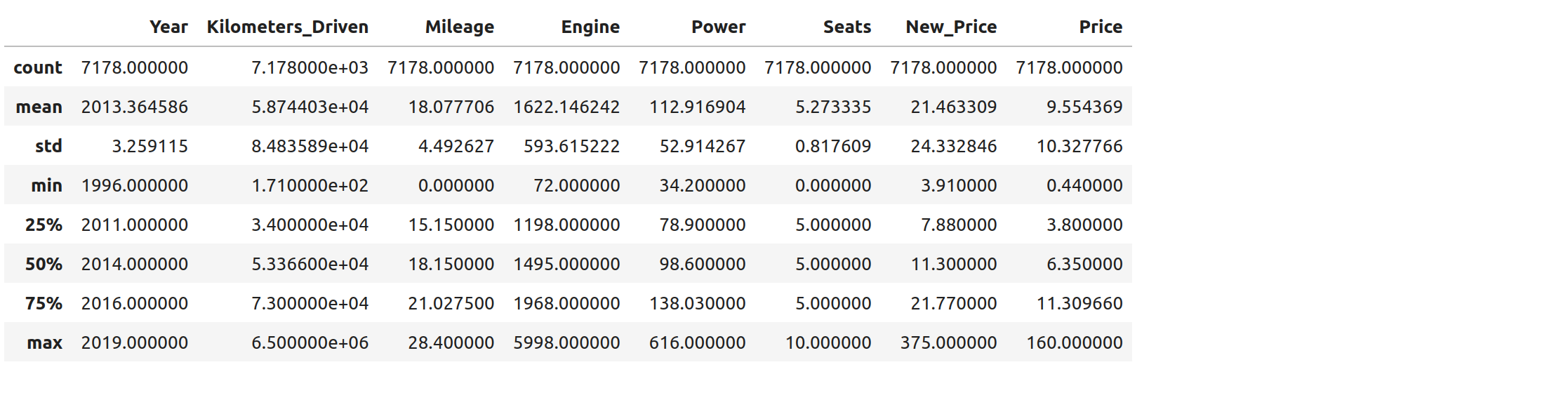
The output shows a number of statistics for each column, including:
count: Total number of values for the column.
mean: Average of values for the column.
std: The standard deviation of values for the column. This is one way to measure the amount of variation in a variable. The larger the standard deviation, the greater the amount of variation.
min: The minimum value of all values for the column.
max: The maximum value of all values for the column.
25%, 50%, 75%: The percentile, i.e., the value below which the given percentage of values fall, approximately. For example, the output above indicates that approximately 25% of cars were created during or before the year 2011.
This information helps us to see how the values of a particular column are distributed. For example, the data indicate that:
We can also use graphical tools for this purpose.
Matplotlib and Seaborn
We recommend two libraries – matplotlib and seaborn – for generating data visualizations. Roughly
speaking, you can think of matplotlib as the lower level library, providing more controls at the expense
of a more complicated API. On the other hand, seaborn provides a relatively simple (by comparison to
matplotlib), high-level API for common statistical plots. In fact, seaborn is built on top of
matplotlib, so it is fair to think of it as a high-level wrapper. It also integrates closely with pandas.
In this lecture, we’ll use a few plots from the seaborn and one from matplotlib.
Installing matplotlib and seaborn can be done with pip:
[container/virtualenv]$ pip install matplotlib

[container/virtualenv]$ pip install seaborn
Both are already installed in the class container.
Once installed, seaborn is typically imported as follows:
>>> import seaborn as sns
The most commonly used matplotlib utilities are under the pyplot module, usually imported like so:
>>> import matplotlib.pyplot as plt
Histograms
The first plot we’ll look at is the histogram, provided by the histplot function. In its simplest
form, we tell it what data to plot. For example, we can have it plot the Year Series of the
cars DataFrame:
>>> sns.histplot(data=cars['Year'] )
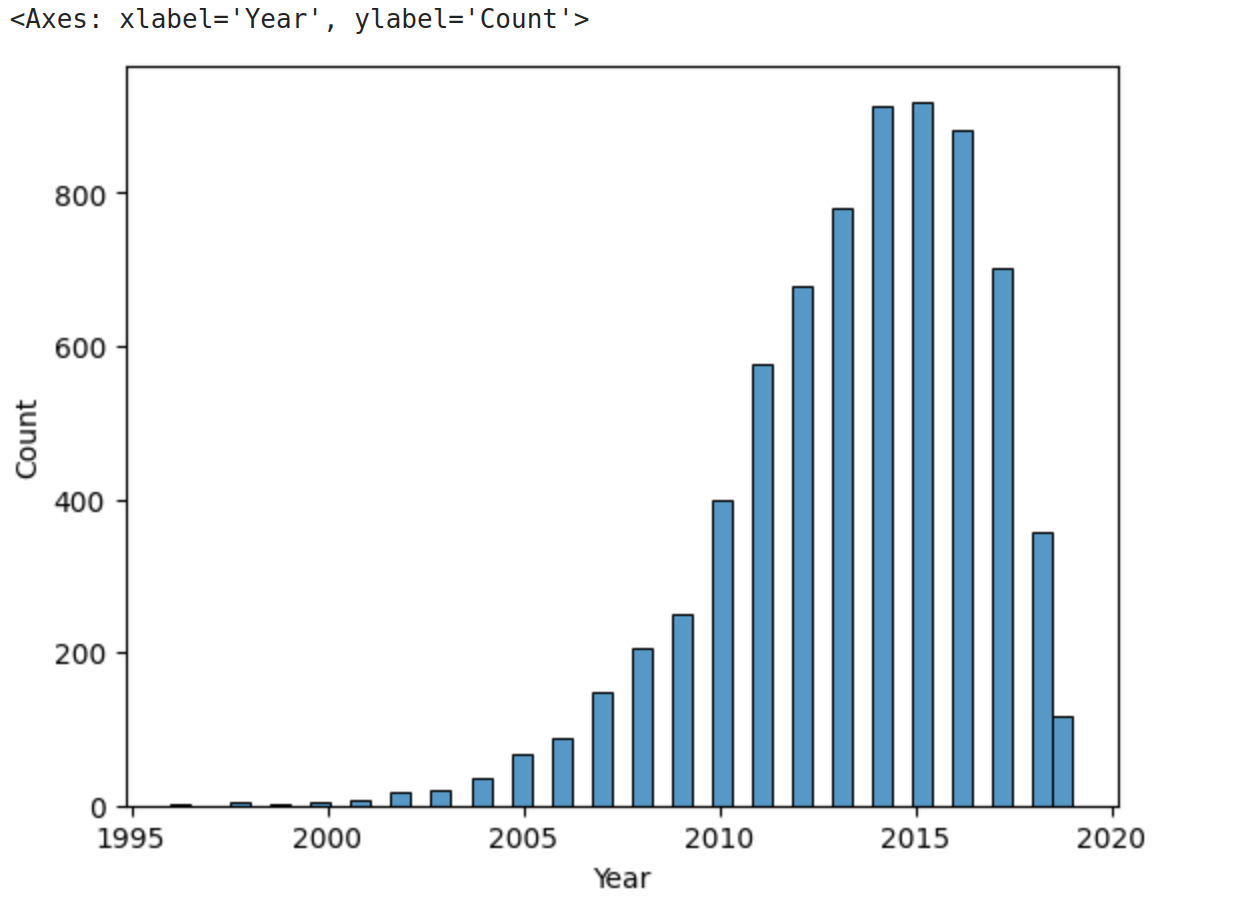
As we see, the histogram plots the counts of each value for the dataset. From this single line of code, we can already see that the distribution of cars is weighted heavily towards the recent years, with a long tail of a small number of cars in years prior to about 2009.
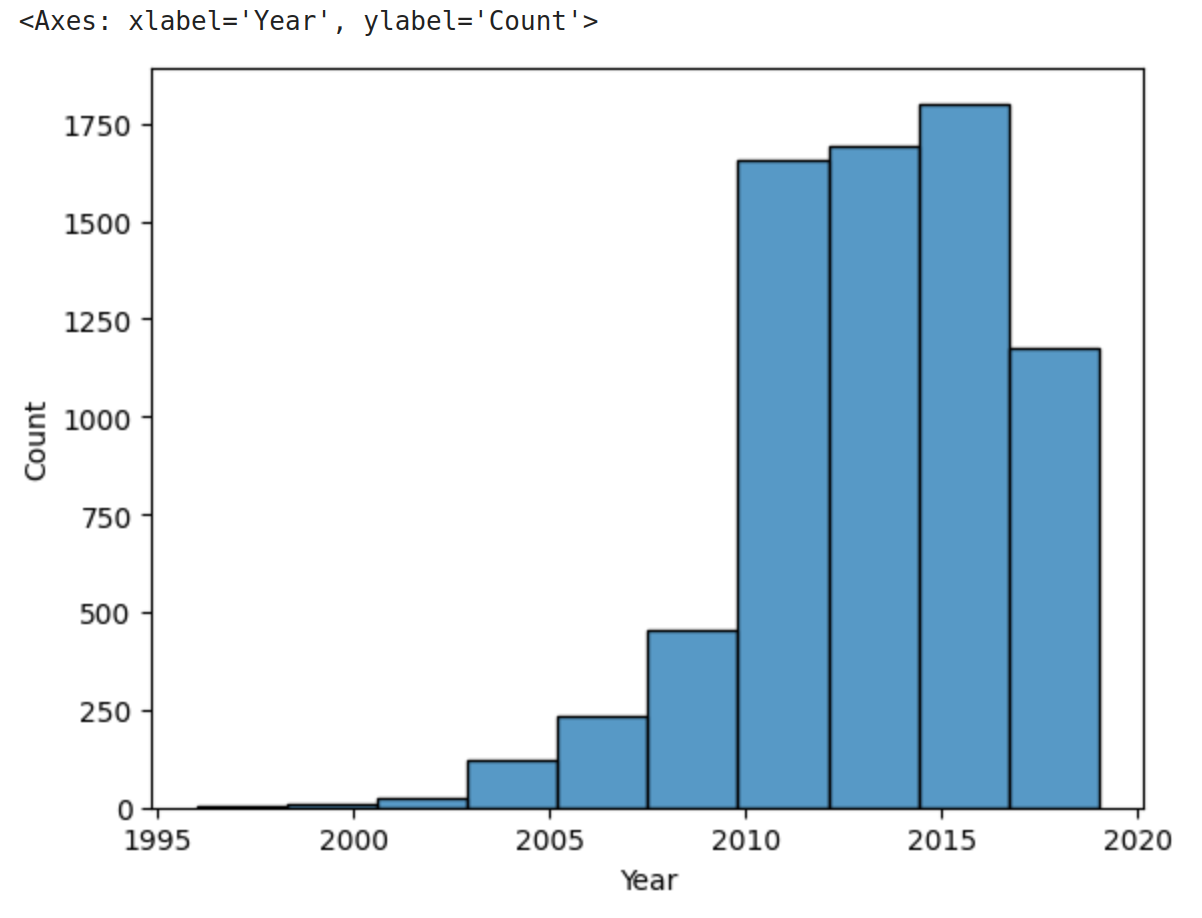
We can also use a different number of bins with histplot. The following code uses 10 bin.
>>> sns.histplot(data=cars['Year'], bins=10)
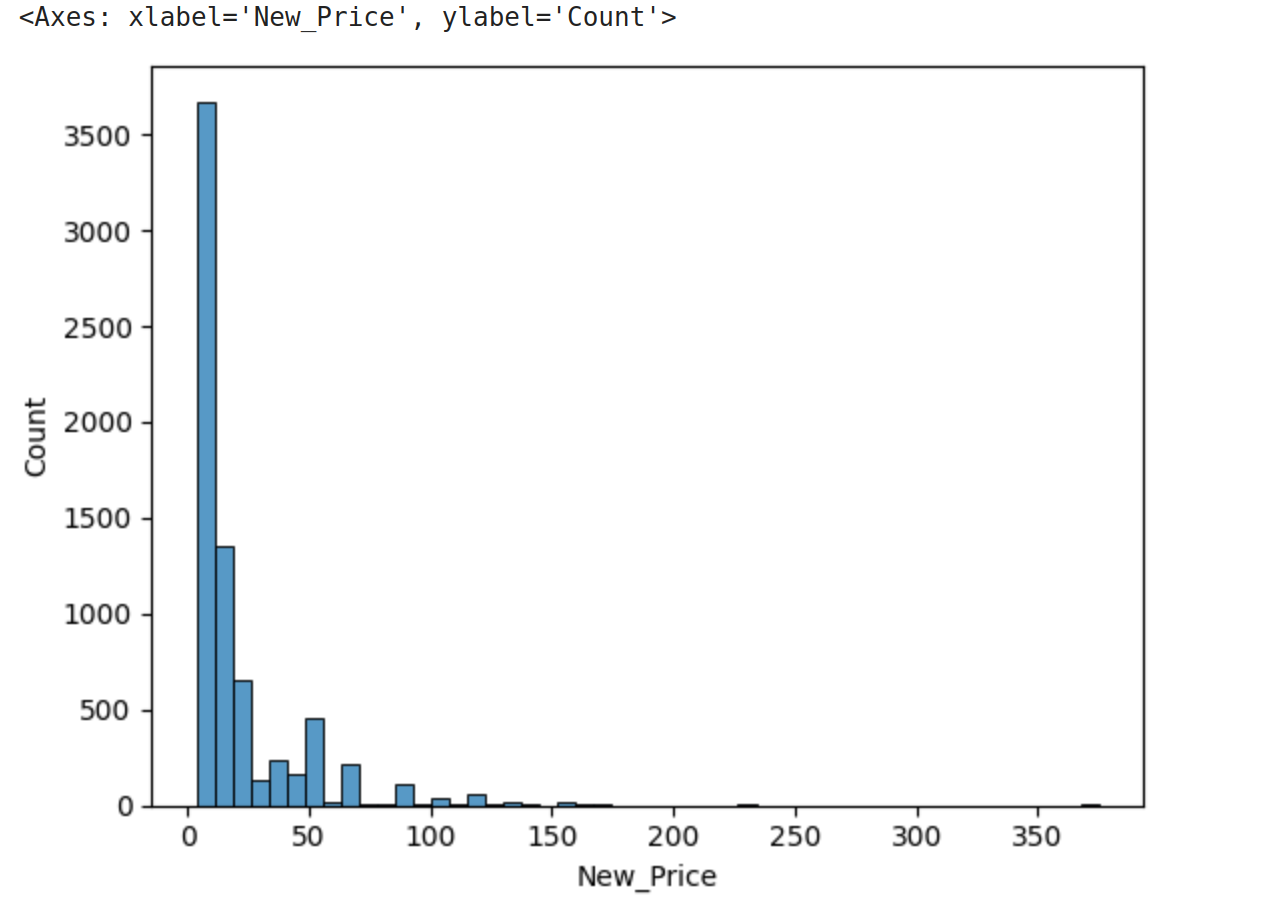
If we look at the New_Price column, the histogram reveals a very skewed distribution with a very
long tail:
>>> sns.histplot(data=cars['New_Price'], bins=50)
Count Plots
Count plots are the second type of useful plot we will introduce. Count plots are used for categorical data in the same way that histograms are for numeric data.
>>> sns.countplot(x=cars['Transmission_Manual'])
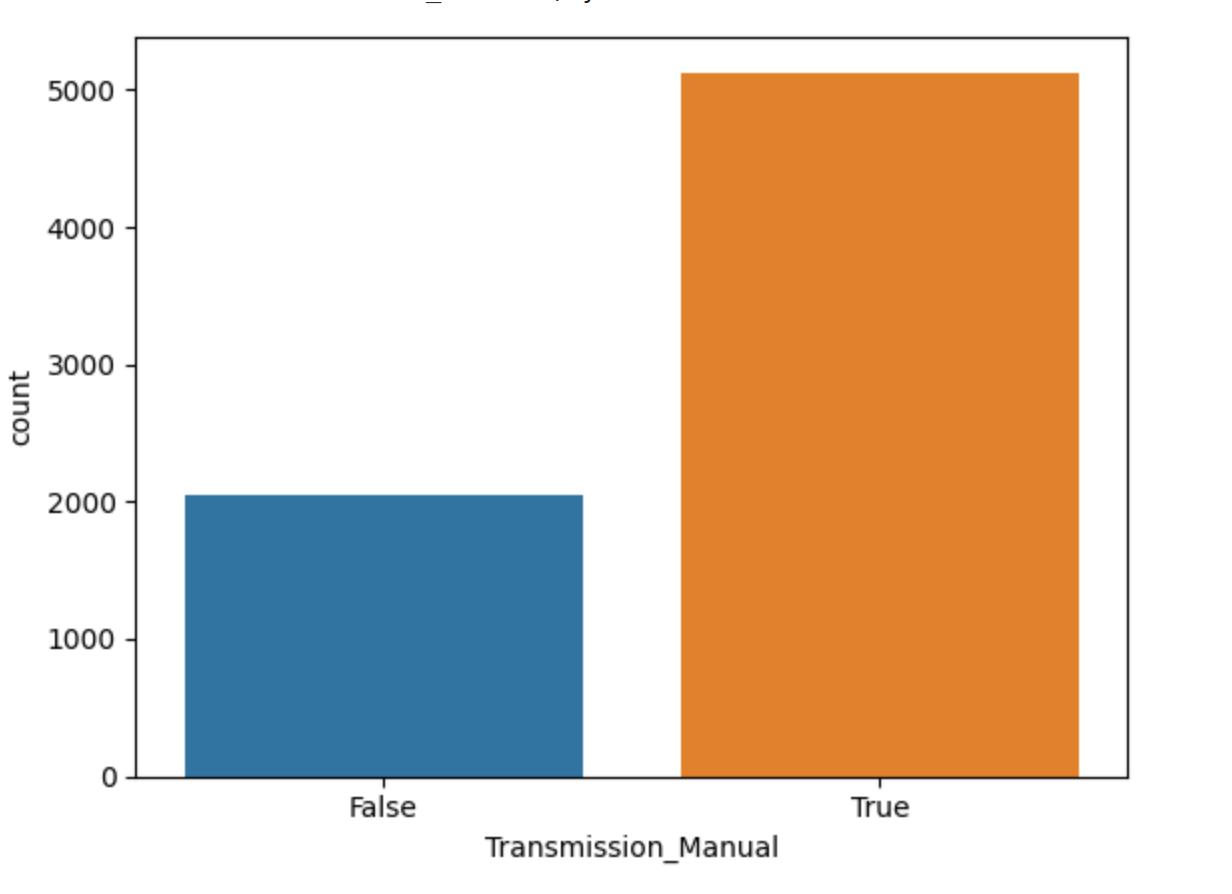
We can immediately see that there is an imballanced distribtion of transmission types, with a lot more manual transmission cars in the dataset than automatic transmissions.
We can also pass a value to the hue parameter, to divide and plot the values of the first
group by the values of the one specified to hue.
>>> sns.countplot(x=cars['Transmission_Manual'], hue=cars['Fuel_Type_Petrol'])

We see that roughly half of the manual transmission vehicles are petrol fuel while significantly less than half (maybe one third or so) of automatics are petrol.
Many aspects of the generated plot are configurable. We won’t cover most of the configurations,
but we do point out that configurations available on the matplotlib.pyplot object
can be used directly on a seaborn plot. For example, rotating the labels for an axis:
>>> import matplotlib.pyplot as plt
>>> sns.countplot(x=cars['Location'])
>>> plt.xticks(rotation=90)
>>> plt.show()
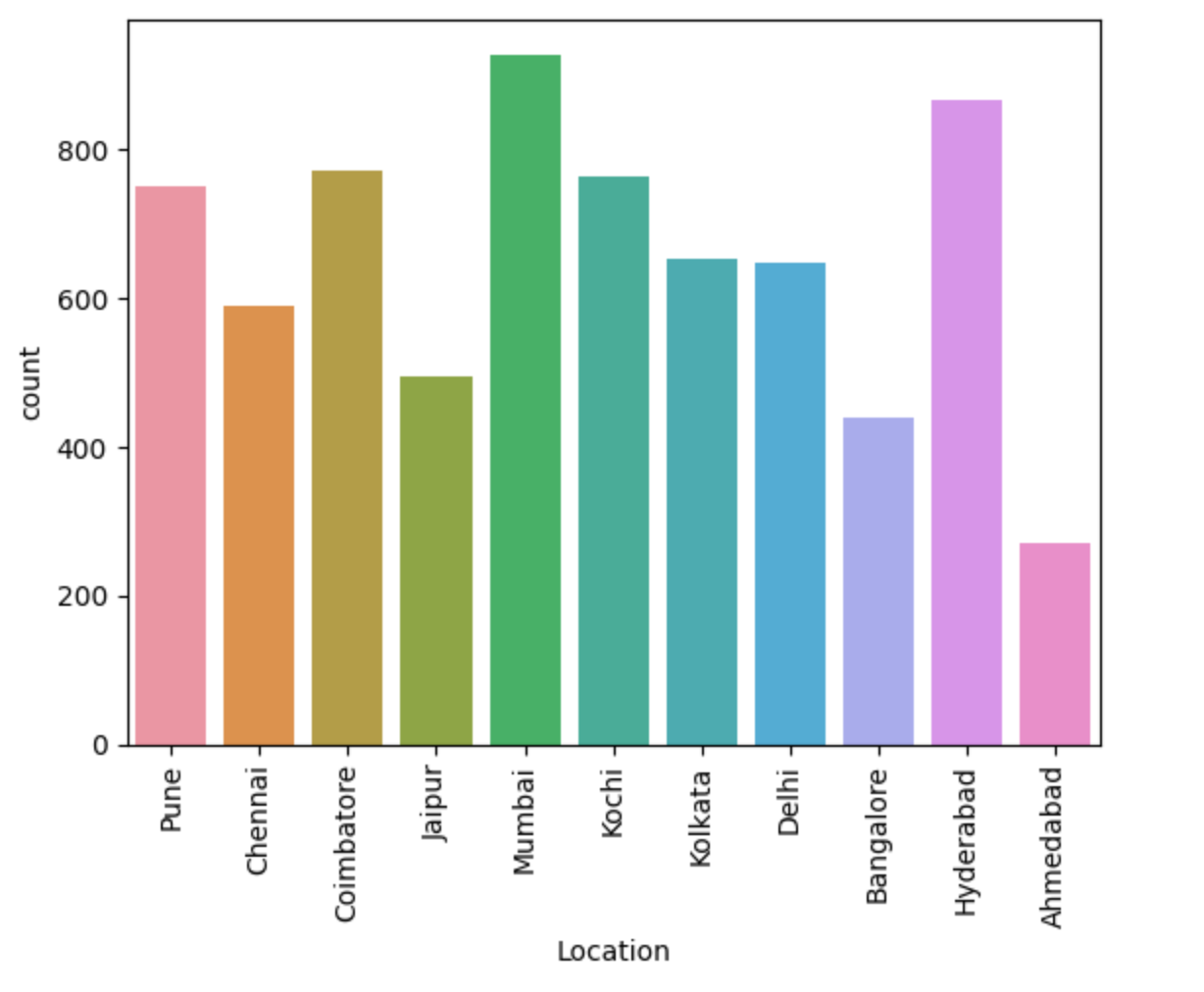
Note that without rotation, the labels bunch together and become illegible.
Box Plots
Box plots (also “boxplots” or “box and whisker plots”) are an effective way to quickly visualize the distribtion of data and look for outliers. Box plots depict quartiles, which are the quarterly percentiles (i.e., 25th percentile, 50th percentile, 75th percentile) of the data. Here is an example, labeled box plot:

Here are some key points about the box plot:
The median is the median (or centre point), also called second quartile, of the data (resulting from the fact that the data is ordered).
Q1 is the first quartile of the data, i.e., 25% of the data lies between minimum and Q1.
Q3 is the third quartile of the data, i.e., 75% of the data lies between minimum and Q3.
The distance betwen Q1 and Q3 is called the Inter-Quartile Range or IQR. In the example above, the median is well-centered within the IQR of the dataset.
The values labled “Minimum” and “Maximum” are aslo called “whiskers” and are computed as: (Q1 - 1.5 * IQR) for the Minimum (or “lower whisker”) and (Q3 + 1.5 * IQR) for the Maximum (or “upper whisker”).
Values to the less than the lower whisker or greater than the upper whisker are depicted as circles. In some cases, it might make sense to label these values as “outliers” and drop them from the dataset, but this approach could also result in loss of relevant observations.
The seaborn library makes it easy to create box plots with the sns.boxplot() function. In the simplest
form, we pass a DataFrame as the data parameter and the name of a column to plot, as a string,
as the x parameter:
>>> sns.boxplot(data=cars, x='Year')
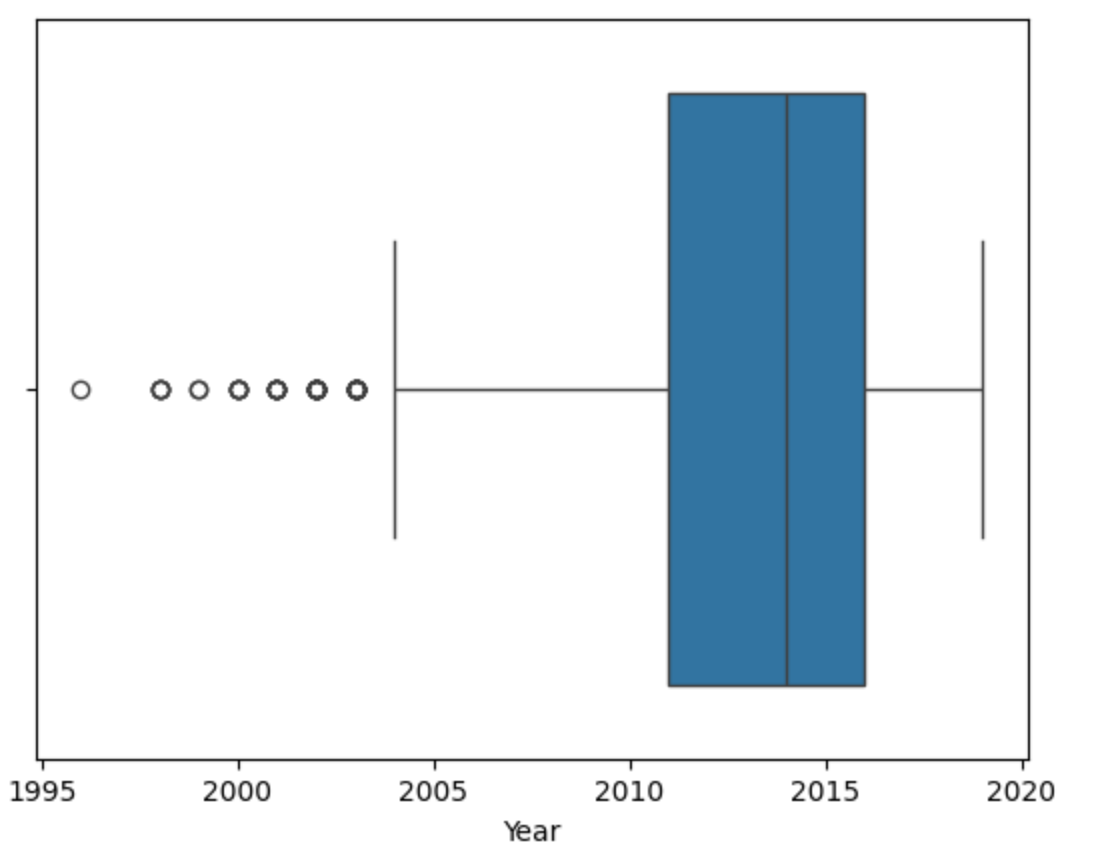
This plot depicts some observations we have made previously, such as:
The dataset is skewed towards older cars.
There is a long tail of cars from older years.
It also suggests that Q3 is a much smaller range than Q1, and cars from years before about 2003 might be outliers.
Let’s plot the Price column:
>>> sns.boxplot(data=cars, x='Price')

What conclusions do you draw from this plot?
Multivariate Analysis
By contrast, multivariate analysis explores the relationships across multiple variables. Like univariate analsusi, it also helps identify potential problems with the data, such as impossible values, as well as to identify outliers.
Heat Maps
Fow now we’ll introduce just one more plot, the heat map, which is a type of bivariate analysis (bivariate meaning two variables). A heat map is an excellent way to visualize the extent to which pairs of variables are corrolated.
We’ll use matplotlib to create a heatmap of the several of the variables in our DataFrame.
This is done using the sns.heatmap function, supplying a set of columns of a DataFrame.
We also show a few additional parameters:
annot=True: Annotate the boxes with numberic corrolation valuesvminandvmax: Adjusts the color rangefmt: Adjusts the formatting of numeric values (.2fmeans 2 decimal places). See the Python string formatting rules for more details [3].cmap: The scheme used for mapping values to colors.
# columns to corrolate
corr_cols=['Kilometers_Driven','Mileage','Engine','Power','New_Price','Price']

# increate the figure size
plt.figure(figsize=(15, 7))

# the actual heat map
sns.heatmap(
   cars[corr_cols].corr(), annot=True, vmin=-1, vmax=1, fmt=".2f", cmap="Spectral"
)

# show the plot
plt.show()

Remember that corrolation values closer to 1 mean two variables are more corrolated while corrolation values closer to 0 mean two variables are less corrolated (with values closer to -1 meaning more negatively or oppositely corrolated).
What are some observations we can make based on the heat map?
The current price is closely corrolated to the orignal (new) price.
The power of the engine is closely corrolated with both prices, but it is negatively corrolated with fuel mileage.
Similarly, the engine size is negatively corrolated with fuel mileage.
Somewhat surprisingly, Kilometers driven is only weakly negatively corrolated with price.
Note
If you are running version 0.12.x of seaborn, you may numeric values along only the top row, due to a bug in seaborn. Updating to 0.13.x fixes the issue.
References and Additional Resources
pandas.DataFrame.drop: Documentation (2.2.0). https://pandas.pydata.org/docs/reference/api/pandas.DataFrame.drop.html
pandas.DataFrame.fillna: Documentation (2.2.0). https://pandas.pydata.org/docs/reference/api/pandas.DataFrame.fillna.html
Python String Format Specification. https://docs.python.org/3/library/string.html#formatspec